The Interface
AnyTa works on a single canvas with floating panels. The window is organized as follows:
- Toolbar: vertical floating card in the top-left corner, with the main menu and the tools.
- Canvas: rulers, grid, guides, hoop, and the design.
- Top context bar: options that change according to the tool or the selection (star points, stitch type, alignment, etc.).
- Properties: floating, draggable card with the parameters of the selected object or stitch.
- Objects and AI: right panel with two tabs, Objects and AI.
- Bottom bar: status, needle palette, object count, and zoom. The stitch player replaces it when it is open.
The toolbar
The bar is 52 px wide and floats over the canvas, to the right of the rulers. Tools are grouped by function and the groups are separated by thin lines.
- The active tool is shown with a lime background.
- A triangle in the bottom-right corner indicates that there are additional options: press and hold the button or right-click.
- Hovering shows the name, shortcut, and a usage hint.
- The
 top icon with the hoop and the ▾ arrow opens the main menu
(File, Edit, View, Generate…). It is not a drawing tool.
top icon with the hoop and the ▾ arrow opens the main menu
(File, Edit, View, Generate…). It is not a drawing tool.
Selection and navigation
| Icon | Tool | Shortcut | What it does |
|---|---|---|---|
 | Select | V or O | Selects objects and shows the transform frame. Drag to move, use the handles to scale, rotate, or skew, and drag over empty space to make a marquee (selects what is completely inside). Shift+click adds, Ctrl+click removes, and double-click enters node editing. |
 | Reshape / Nodes | H | Edits the nodes and handles of the selected shape. Drag a node to move it, double-click a segment to insert a new one, and use Tab to cycle through contours and holes. Disabled if there is no selection. |
 | Pan view | Space (hold) | Scrolls the canvas by dragging. It also works with the middle mouse button. Releasing Space restores the previous tool. |
 | Zoom | Z | Drag a rectangle to zoom into that area; Ctrl+click zooms out. Press and hold or right-click to open the menu: Fit to window, Actual size, Zoom in, and Zoom out. The zoom field accepts 10% to 2000%. |
Drawing
| Icon | Tool | Shortcut | What it does |
|---|---|---|---|
 | Rectangle | — | Drag from a corner to create a rectangular object. |
 | Circle | — | Drag from the center; the radius is defined by the distance to the cursor. |
 | Star | — | Drag from the center to create a star. In the top bar, adjust the points (3–48), the inner radius (10–95%), or enable Polygon to get a regular polygon. |
 | Text / Lettering | — | Click on the canvas to place text. The content, embroidery font, and stitch parameters are edited in Properties. |
Stitches
| Icon | Tool | Shortcut | What it does |
|---|---|---|---|
 | Stitch / run | F8 | Draws a running line. Click to add nodes; drag when placing a node to create a curve and use Ctrl for a straight node. Double-click or Enter finishes the path, and then entry and exit are defined. In the top bar you choose Manual, Run, Double, or Bean stitch. |
 | Column A | F4 or A | Alternates nodes on the right and left: right-click, left-click, right-click… Enter closes the column when there is at least one pair. |
 | Column B | F5 or B | Two-edge column. Draw the first edge (drag for a curve, Ctrl for a smooth node), press Enter, draw the second edge, and press Enter to finish. |
 | Column C | F6 or C | Centerline column. Click the points (Ctrl+click for a curve), Enter to close the centerline, drag to set the width, and define entry and exit. |
 | Complex Fill | — | Draws a closed contour, adds holes, and defines the stitch angle. Enter closes each contour; two Enter presses in a row finish the holes; then entry, exit, and angle are chosen. |
Utilities
| Icon | Tool | Shortcut | What it does |
|---|---|---|---|
 | Measure | M | Drag between two points to see the distance in millimeters and inches and the angle of the line. Esc cancels the measurement. |
 | Preview mode | Ctrl+3 for 3D | The icon changes according to the active mode: Vector, Stitches, Combined, or Realistic (3D). One click enables or disables the 3D view; disabling it returns to Combined. Press and hold to choose another mode. It is also in View → Render mode. |
 | Stitch Player | Ctrl+P | Opens or closes the bottom simulation bar: go to start, rewind 10, rewind 1, play/pause, step forward 1, step forward 10, go to end, and control the speed in stitches per minute. |
Tool shortcuts are disabled while you type in a text field or a dialog is open.
Esc cancels the path in progress, Enter closes it, and Del deletes the
selection.
The canvas
The design area includes rulers, grid, and guides. You can scroll with the
middle mouse button or by holding Space, and zoom with the wheel
(Shift+wheel to zoom, Ctrl+wheel for horizontal scrolling).
The hoop and the reference image are shown as independent layers and are controlled from the right sidebar and the objects panel. The button in the top-left corner of the rulers opens the Canvas Settings, where the grid, guides, units, and hoop are configured. See also Rulers and Guides to create, move, delete, and change their color.
Top context bar
It is a floating card that appears over the canvas, usually above the selection or centered at the top. Its width adapts to the content, and it is hidden when there is no active context.
It gathers three types of controls:
- Action icons: flip, align, crop, rotate, reveal, or open more actions.
- Numeric fields: height (
H), width (W), points, length, density… - Menus and options: stitch types, node types, and object actions.
Changes are applied instantly. In size fields, Enter confirms the value and
Esc restores it.
Contexts
| Context | When it appears | Main content |
|---|---|---|
| Single object | There is exactly one object selected. | Flip, size, proportion, reveal in the list, and more actions. |
| Multiple objects | Two or more objects are selected. | Align, flip the group, group size, and count. |
| Artwork | The reference image is selected and unlocked. | Flip, size, proportion, crop, and rotation. |
| Node editing | The Reshape / Nodes tool is active. | Add/delete nodes, join/split, node type, and corners. |
| Star | The Star tool is active. | Points, polygon, and inner radius. |
| Stitch / Run | The Stitch tool is active. | Stitch type and numeric options. |
Single object
| Icon | Control | Function |
|---|---|---|
 | Flip horizontal | Mirrors the object from left to right. |
 | Flip vertical | Mirrors the object from top to bottom. |
H / W + unit | Height and width | Changes the size in the active unit. Enter applies and Esc restores. |
  | Lock proportion | Maintains the height/width ratio when editing one of the two measurements. |
 | Show in Objects | Scrolls to and highlights the object in the Objects list. |
 | More actions | Opens the menu for copy, cut, duplicate, delete, paste properties/size/width/height, create border, and convert text to objects. |
Multiple objects
| Icon | Control | Function |
|---|---|---|
 | Align left | Aligns objects by their left edge. |
 | Center horizontally | Aligns the centers on the horizontal axis. |
 | Align right | Aligns by the right edge. |
 | Align top | Aligns by the top edge. |
 | Center vertically | Aligns the centers on the vertical axis. |
 | Align bottom | Aligns by the bottom edge. |
| | Flip group | Mirrors the entire selection. |
H / W + unit | Group size | Scales the set to the specified height and width. |
| | Lock proportion | Maintains the group's proportion. |
| — | Count | Indicates how many objects are selected. |
Alignment uses the bounding rectangle of the entire selection as a reference.
Artwork
| Icon | Control | Function |
|---|---|---|
| | Flip reference | Mirrors the reference image. |
H / W + unit | Size | Changes the size of the image. |
| | Lock proportion | Maintains the height/width ratio. |
 | Crop | Activates crop mode with handles. |
  | Apply / cancel crop | Confirm with Enter or cancel with Esc. |
 | Rotate 90° | Rotates the reference clockwise. |
The artwork bar does not appear if the image is locked.
Node editing
| Icon | Control | Function |
|---|---|---|
 | Add node | Inserts a node in the selected segment. |
 | Delete node | Deletes the selected node or nodes. |
 | Join ends | Joins the ends of a column. |
 | Break path | Splits the path at the selected node. |
 | Cusp node | Vertex with asymmetric handles. |
 | Smooth node | Aligned handles for a continuous curve. |
 | Symmetric node | Handles of equal length. |
 | Segment to line | Converts the segment to a straight line. |
 | Segment to curve | Converts the segment to a curve. |
 | Column corner | Square, miter, or round on columns A/B/C. |
With several nodes selected, the node type, segment, and corner controls are hidden.
Star
| Icon | Control | Function |
|---|---|---|
| Points | Number of points, from 3 to 48. |
| — | Polygon | Converts the star into a regular polygon. |
| — | Inner | Depth of the star, from 10% to 95%. Hidden in polygon mode. |
Stitch / Run
| Icon | Control | Function |
|---|---|---|
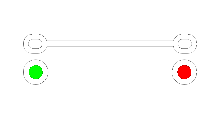 | Manual | Places the points manually. |
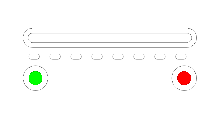 | Run | Single-pass run. |
 | Double | Several back-and-forth passes. |
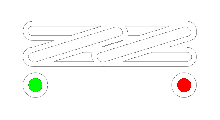 | Bean stitch | Reinforced stitch that repeats each point. |
The › button expands the numeric options:
- Length: between 0.5 and 12 mm; typical value, 2.5 mm.
- Min. and Max.: minimum and maximum length of the run.
- Passes and Return: only in Double; number of passes and return.
- Repeats: only in Bean stitch; stitch repetitions.
Properties
The Properties card floats over the canvas and can be dragged and collapsed.
It shows the parameters of the selected object or of the active digitizing tool:
stitch type, density, angle, compensation, thread, entry/exit points, and
geometry. The  reset icon returns the card to its original position.
The card changes according to the object type. See Properties for all the variants: fill, complex fill, lettering, columns A/B/C, and running lines.
Objects and AI
The layers icon in the right sidebar opens or closes the panel. The panel has two tabs:
- Objects (lime): list of objects grouped by color and embroidery order.
- AI (violet): agent run history and access to the composer.
Right sidebar
| Icon | Button | What it does |
|---|---|---|
 | Objects | Opens or closes the panel. It is highlighted when open. |
 | Hoop | Shows or hides the hoop on the canvas. |
 | Symmetry | Opens the symmetric copy bar. |
 | Machine Origin | Defines the (0,0) point of the design. |
Objects tab
From top to bottom, the panel contains:
-
 Artwork: card to load the reference image. In the empty state it shows
Add artwork · Load image and the entire card is clickable. With an image
loaded it shows the thumbnail, the file name, the
Artwork: card to load the reference image. In the empty state it shows
Add artwork · Load image and the entire card is clickable. With an image
loaded it shows the thumbnail, the file name, the
 eye to hide it, the
 trash to remove it, the
 lock, and an Opacity control.
 - Summary: number of colors, objects, and total stitches in the format
N colors · N objects · N stitches. On the right, the button Expand/Collapse all groups.
 - Object list grouped by color: each group shows an arrow to collapse it, the thread swatch, the color name, and the count of objects and stitches of that color. Manual groups appear as Group and are indented under their color.
- Object rows:
show/hide,
 lock/unlock, thumbnail, object type, order number with the thread name, and
total stitches.
lock/unlock, thumbnail, object type, order number with the thread name, and
total stitches. - Sequence: bottom strip with the thread swatches in embroidery order ( …). Clicking a swatch selects all objects of that color; if there are many, it scrolls horizontally.
| Icon | Action | Result |
|---|---|---|
 | Eye | Hides or shows the object without deleting it. |
| | Lock | Locks the object so it cannot be selected or edited on the canvas, or unlocks it. |
| — | Click an object | Selects it on the canvas. |
| — | Double-click an object | Enters isolated editing of the group or object. |
| — | Click a color group | Selects all its objects. |
| — | Click the group arrow | Collapses or expands its objects. |
| — | Drag a row | Changes the embroidery order; a lime line indicates the insertion position. |
The order of the list is the embroidery order. Dragging a row updates the sequence and the object becomes selected.
AI tab
When you enable AI, the pill turns violet and the agent history opens; the composer appears at the bottom of the canvas. Each entry shows the prompt, the mode (Digitize, Vectorize, Variants, or Edit), the number of colors and stitches, a thumbnail, and the generated variants.
- While the agent is working, a live card shows the current step and the Working or Paused status.
- If the agent needs an answer, it indicates Waiting for your response.
- Hovering over a finished entry shows Restore; one click restores that version of the design.
- Entries can be marked as Active or Modified.
- If there are no runs yet, No runs yet is shown with an explanation that they will appear here when each job finishes.
Bottom bar
The bottom bar shows the cursor status, the needle palette, the number of objects, and the zoom. When you open the stitch player, this bar is hidden and leaves its place to the playback controls.
See Status Bar and Stitch Player for all the elements, the transport icons, the speed, and the progress bar.